
The error of “Invalid Code” is commonly caused by the following factors. You may examine the cause of this error as follows:
- Incorrectly entered the email verification code as the two-factor authentication (2FA) code.
When logging in on the app, enter the email verification code in the first field — it contains numbers and letters. Enter the two-factor authentication code in the second field — it is a 6-digit numeric code only.
- Two-factor authentication is not enabled or has been lost.
Please refer to "How do I reset the two-factor authentication (2FA)?" to apply for temporary removal of 2FA. After logging into your account, enable a passkey or two-factor authentication in the Security Settings.
- Inputting the wrong type of code.
When two-factor authentication is required, users have to input a 6-digit one-time code generated by your authentication app, the code will be refreshed once the previous one has expired in 30 seconds. The authenticator security key is a 16-digit code used for reinstalling the authenticator or importing it to a new device. Securely back up this key and never share it with anyone.
- System time is inaccurate.
The local time of your 2FA device should be synchronized with the actual time to make the 2FA code work. Follow the instructions below to sync time.
On Android:
- Go to the Main Menu on the Google Authenticator app
- Select Settings.
- Select Time correction for codes.
- Select Sync now.
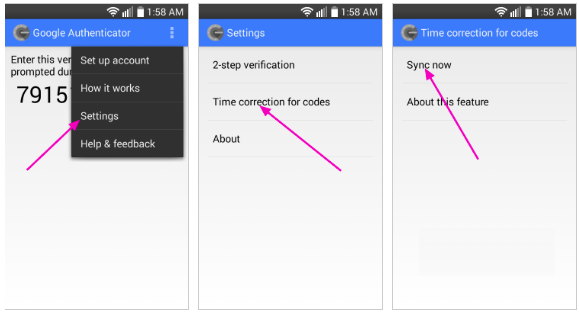
On the next screen, the app will confirm that the time has been synced, and you should now be able to use your verification codes.
On iOS:
- Go to Settings of your Authenticator app.
- Select General.
- Select Date & Time.
- Enable Set Automatically.
If it is already enabled, please disable it, wait for a few seconds and then re-enable it.
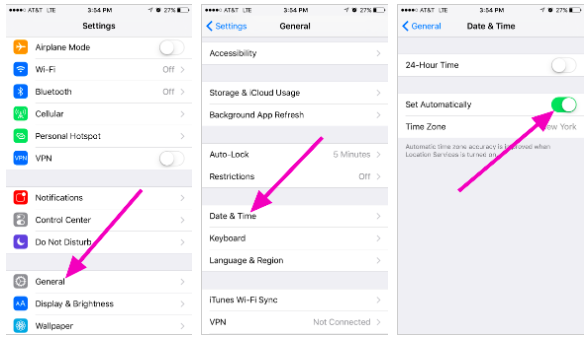
If you have already performed a time sync on your device, but the problem still persists, please refer to this guide to reset your 2FA.
- 2FA has not been enabled successfully
If you encounter issues during the 2FA setup process or fail to complete it, and you see a new QR code and security key when clicking “Enable” again, follow these steps:
- Remove the existing f2pool 2FA code from your Google Authenticator app.
- Use Google Authenticator to scan the new QR code or manually add the latest security key displayed on the f2pool page, and store it securely.
- Follow the on-screen prompts to complete the setup.
Please note that, each 2FA activation is a separate process. If you need to restart the setup, please remove any previously associated codes with f2pool from your authenticator app before beginning a new attempt.
Comments
0 comments
Article is closed for comments.